Guide
Build your first custom automation, with three recipes
The templates cover the common messages. The custom automation builder covers the rest. You choose what starts it, add conditions, and pick what happens. This guide walks through one build and then gives three recipes you can copy.
By CalSpark team. Published . Updated .
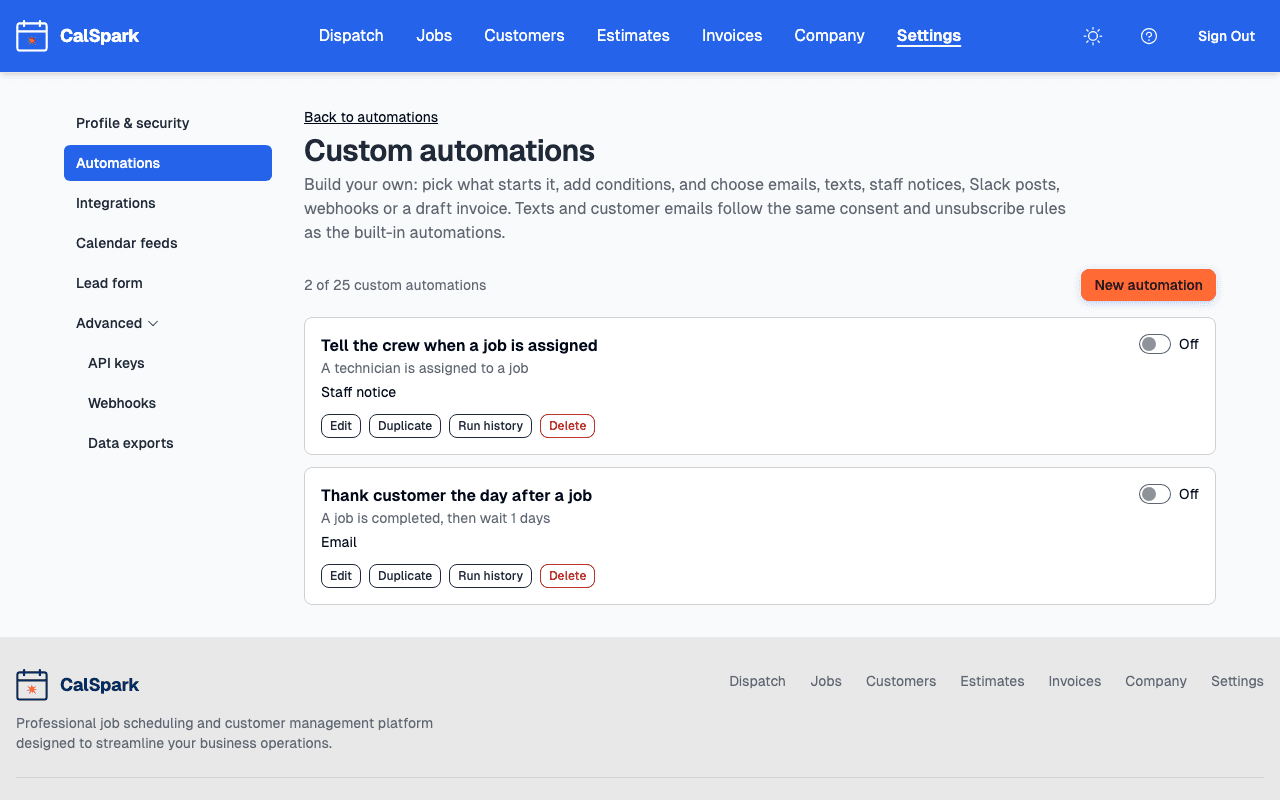
The parts of an automation
Every custom automation has a trigger, optional conditions and one or more actions.
- Trigger: an event such as "A job is completed", "An invoice is paid in full" or "A new lead comes in", with an optional delay. Or a time rule counted from a job start, a completed job, an invoice due date or an invoice sent date. Or a daily run. Or a manual run.
- Conditions: tests that must pass, such as a total above a number. You can combine them with and, or and not.
- Actions: send an email, send a text, notify a user in the app, create a draft invoice, post to Slack or call a webhook. A rule can have up to 5 actions.
You can have up to 25 custom automations per company. Templates, which are the ready-made ones, are separate and have their own switches.
Build one, step by step
- Open Settings, then Automations, and go to the custom automations page.
- Choose New automation and give it a name you will recognise in six months.
- Pick the trigger and, if it has one, a delay.
- Add conditions if the rule should run only sometimes.
- Add the action and write the message. Use the preview to see it filled in.
- Save, then use the on and off switch to enable it. A new rule does nothing until it is on.
- Check Run history after the first real run to see what was sent or skipped, and why.
Email subjects can be up to 150 characters and email bodies up to 5,000. Texts are capped at 480 characters. Use the Duplicate action on a working rule to start the next one.
Recipe 1: a check-in email three days after a job
- Trigger: a time rule, 3 days after a job is completed.
- Conditions: none, or limit it to one kind of job if you keep a clear label in the job description.
- Action: send an email to the customer.
Subject: How is the new {{job.title}} working?

Hi {{customer.first_name}}, this is {{company.name}}. We finished your job a few days ago. If anything is not right, reply to this email and we will sort it out.
Use this next to, not instead of, the review request template. The review request asks for a review. This one asks whether anything is wrong, and catches problems before they become reviews. Fill in only the fields your template list offers, and check the preview.
Recipe 2: tell the office when a big invoice is paid
- Trigger: the event "An invoice is paid in full".
- Conditions: the invoice total is greater than the amount you care about.
- Action: post to Slack, or notify a user in the app.
Set up the Slack connection first. The steps are in Slack notifications for new leads and paid invoices. If you do not use Slack, pick the in-app notify action instead and choose who gets it.
Recipe 3: send each completed job to your own system
- Trigger: the event "A job is completed".
- Conditions: none.
- Action: call a webhook at an address you control, such as a spreadsheet script.
This suits a bookkeeper who wants every finished job in a sheet. The public API and signed webhooks do the same job with more detail. See send completed jobs to a Google Sheet.
Limits and safety
- Fair-use sending limits apply to email and text sent from your account, and trial accounts have lower limits than paid accounts. Test sends count too.
- By default CalSpark sends at most one message per customer per channel per day, so a customer is not messaged twice by two rules.
- Customers you import do not trigger rules by default, so importing a list does not send a flood of messages.
- Texts need your own Twilio account, Text messaging switched on in Company, Features, and the customer's consent. They are off by default.
- A send window can hold messages during quiet hours and send them later.
Test every new rule with one real example before you trust it. The Run history shows each run with its status and the reason when it was skipped.
Questions
How many custom automations can I have?
Up to 25 per company, with up to 5 actions in each one.
Is a custom automation on as soon as I save it?
No. Use the on and off switch to enable it. A rule that is off does nothing.
Can an automation send a text?
Only if your company has set up its own Twilio account, turned on Text messaging and the customer has agreed to texts. Otherwise use email.
Where do I see what an automation did?
In Run history for that rule. Each run shows whether it was sent or skipped, and the reason.
Do custom automations cost extra?
No. They are part of the one plan. Fair-use sending limits apply to messages.
Keep reading
- Appointment Reminder Emails Customers Actually ReadWhat to put in an appointment reminder email for a trade business: subject lines, the first line, example wording, 24 hour and 2 hour timing, and how to check the log.
- Slack Notifications for New Leads and Paid InvoicesConnect a Slack incoming webhook in Settings, Integrations and post new leads, completed jobs and paid invoices to a channel. No Slack app needed.
- Estimates customers can approve onlineBuild an estimate with line items, send it as a PDF by email, let the customer approve or decline on a web page, then turn it into a job and a draft invoice.
- Slack notifications: connect an incoming webhookPaste a Slack incoming webhook into Settings, Integrations to post new leads, completed jobs and paid invoices to a channel. Steps, limits and FAQ.
- Text message reminders: set up your own Twilio accountTexts need your own Twilio account, Text messaging switched on in Company, Features and customer consent. Setup steps, quiet hours, STOP handling and limits.
Try it with your own jobs
14-day free trial. No card. $49 a month flat for up to 10 users after that.