Guide
How to write an estimate customers approve the same day
Most estimates are not turned down. They are put off, because the customer could not tell what they were buying or what to do next. This guide covers what to put on an estimate so a customer can say yes from their phone, how to send it, and what to do when they go quiet.
By CalSpark team. Published . Updated .
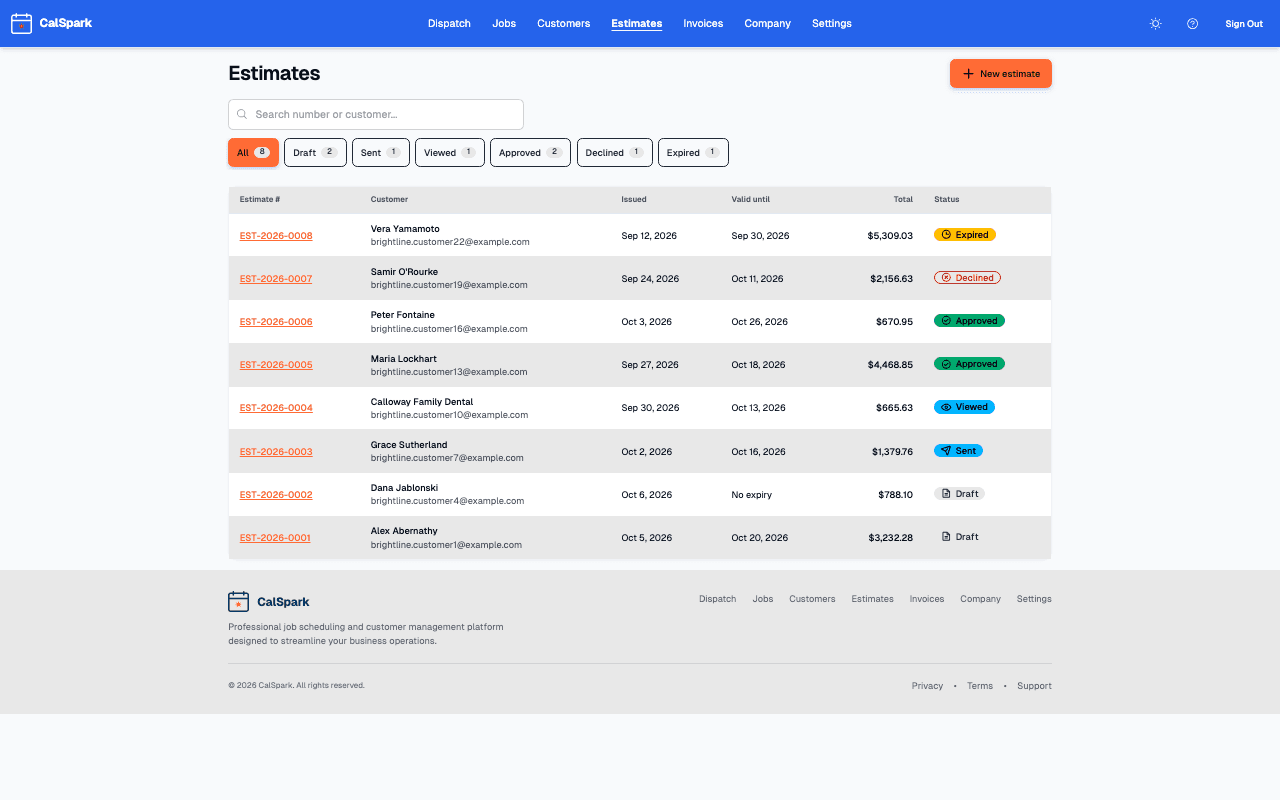
What an estimate needs before it can be approved
A customer says yes when they understand the work, the price and the next step without calling you. Check each of these before you send.
- The right customer and the right address. A landlord with three rentals needs the estimate tied to the one being worked on.
- A short description of the problem and the fix, in the words the customer used when they called.
- Line items they can match to the work: the unit, the parts, the labor, the fees.
- A total that includes tax, so the number they approve is the number they pay.
- An expiry date, so the price is not open forever.
- Terms in plain language: what is covered, what is not, and what happens if the job turns out different.
In CalSpark all of this lives on one estimate. The customer sees the lines, the total, your notes and your terms on a single page.
Write line items a homeowner can read
A line like "Misc materials" invites a phone call. A line like "Replace 40 gallon gas water heater, including new flex connectors" does not. Describe each line as the customer would describe it, and keep one idea per line.
| Vague | Clearer |
|---|---|
| Labor | Install and test new thermostat, 2 hours |
| Parts | Replace failed run capacitor, 1 part |
| Service | Diagnostic visit, credited if you approve the repair |
| Misc | Permit and inspection fee |
Put the fee that surprises people on its own line, such as a permit, a disposal charge or a trip fee. People forgive a fee they can see. They push back on one that appears on the invoice.
If you offer a choice, such as a standard unit and a higher-efficiency unit, write two estimates. Each one is a clean yes or no. One estimate with both options in the notes leaves the customer to do the arithmetic.
Use the notes and terms fields on purpose
The notes field is for what the customer needs to hear. The terms field is for what you need them to agree to. Keep both short.
- Notes: what you found, what the fix does, and how long the work takes.
- Notes: what the customer has to do, such as clear the area or be home for the shutoff.
- Terms: how long the price holds, what is excluded, and what happens if you find a second problem.
Set the expiry date to a real date you can live with. A price that holds for two weeks gives the customer room to decide and gives you a natural reason to follow up. When the date passes, the estimate expires and you can send a new one at current prices.
Send it while the visit is fresh
The best time to send is the same day as the visit, while the customer still remembers what you said. CalSpark emails the estimate with the PDF attached and a link to the approval page.
- Create the estimate from the customer record, the same day as the visit.
- Read it once as the customer would. Would you know what to do next?
- Choose Send and confirm. The status moves to sent, then to viewed when they open it.
- Tell the customer it is coming. A quick call or text from your own phone that says "I just sent it, tap the button to approve" helps.
The customer types their name, presses Approve and is done. No account, no password, no printing. If they want to decline, they can say why, and that reason is worth reading.
Follow up without nagging
The status tells you where things stand. Sent means they have not opened it. Viewed means they looked and have not decided. Those two need different messages.
You can also switch on the Estimate follow-up template under Settings, Automations. It sends one email three days after the estimate goes out, and stops once the customer approves, declines or lets it expire. It is off by default.
- Sent, not viewed after a day: check the email address and resend. Choose Resend on the estimate.
- Viewed, no answer after a day or two: call and ask what questions they have.
- Close to expiry: say the price holds until the date on the estimate.
Do not change numbers on a sent estimate to nudge a decision without telling the customer. If you edit a sent estimate it goes back to draft and the old link stops working, so you send a fresh one and say what changed.
After the yes
An approved estimate is locked, so the price cannot drift. Choose Create job to make a pending job, then drag it onto a free day on the dispatch board. Choose Create invoice when you are ready to bill, and you get a draft invoice built from the same lines.
There is no deposit field on an estimate. If you take a deposit, create an invoice for that amount. For more on getting paid, see how to get contractor invoices paid faster.
Questions
How long should an estimate stay open?
Long enough for the customer to decide and short enough that your costs do not change under you. Two weeks is a common choice. Set the date in the expiry field on the estimate.
Should I write one estimate or several for different options?
Several. One estimate per option gives the customer a clear yes or no on each, and the totals stay easy to read.
What if the customer wants a change?
Edit the estimate and send it again. A sent estimate returns to draft when you change it, and the old link stops working so nobody approves numbers that have changed.
Can the customer approve from a phone?
Yes. The approval page works in a phone browser. They type their name and press Approve.
Does an approved estimate become an invoice on its own?
No. You choose Create job and Create invoice. The invoice is a draft that you review and send yourself.
Keep reading
- Estimates customers can approve onlineBuild an estimate with line items, send it as a PDF by email, let the customer approve or decline on a web page, then turn it into a job and a draft invoice.
- Invoicing and online card paymentsInvoices with line items, PDF and email, pay links, card payment of the balance through your own Stripe account, staff-recorded partial payments and refunds. Estimates convert to draft invoices.
- How to get contractor invoices paid fasterInvoice the same day, record deposits and partial payments, offer card payment and chase late invoices without souring the customer.
- Job pricing and markup calculator for contractorsEnter labour, materials, overhead and the margin you want. Get a price, the markup and the profit. Runs in your browser, no login.
- Job scheduling and dispatch timelineA dispatch board with a row per technician, in day and week views. Click to create a job, drag to reschedule or reassign, and get a warning when two jobs overlap.
Try it with your own jobs
14-day free trial. No card. $49 a month flat for up to 10 users after that.