Estimates the customer can approve from a link
Build an estimate with line items, email it as a PDF, and let the customer approve or decline on a web page. When they approve, turn it into a job and a draft invoice with one click each.
Build an estimate
Open Estimates in the top menu and start a new one. Pick the customer and, if the work is at a particular address, pick the address. You can also link the estimate to an existing job. Then add line items: labor, parts, fees, one per line. An estimate can hold from 1 to 100 lines.
Set the tax rate or leave it blank, and CalSpark uses your company default tax rate from the Company page. Add a discount if you give one. Choose an expiry date, which is a calendar day in your company time zone. Write notes the customer should read, and your terms and conditions. Then choose Create draft.
- Open Estimates and choose to create a new one.
- Pick the customer and the address for the work.
- Add line items with a description, quantity and price.
- Check the tax rate, any discount and the expiry date.
- Add notes and terms and conditions, then choose Create draft.
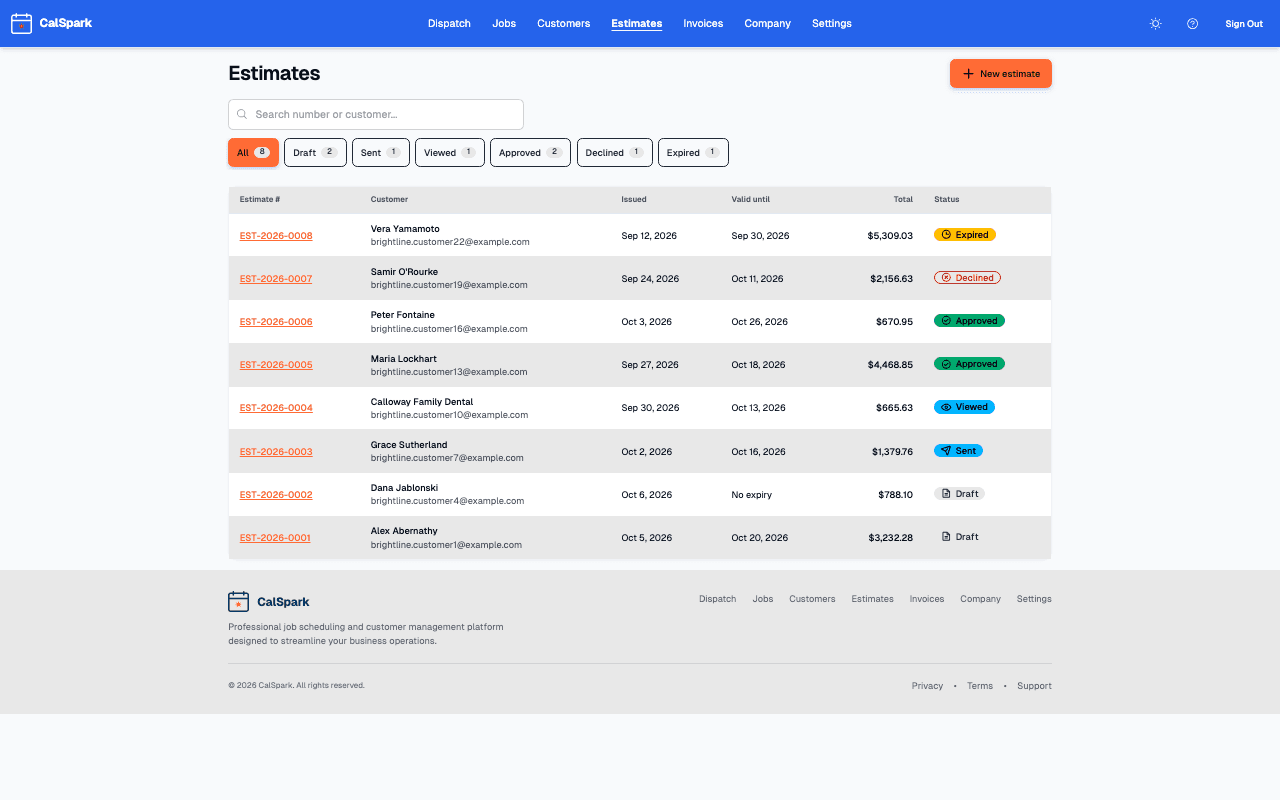
Every estimate gets a number in the form EST-2026-0007, counted per company, with the year taken in your company time zone. The totals are worked out for you from the lines, the discount and the tax.
Send it and get an answer
On the estimate, choose Send and confirm. CalSpark emails the customer a link and attaches the PDF. If you want the file yourself, Download PDF is on the same page. If the customer has not answered, the button reads Resend and sends it again.
The link opens a customer page with the lines, the total, your notes and your terms. The customer types their name and presses Approve, or declines and can add a reason. The typed name is recorded with the decision. It is a name and a timestamp on the estimate, not a certified electronic signature. No account and no login are needed.
| Status | What it means |
|---|---|
| Draft | Built but not sent. You can edit it or delete it. |
| Sent | Emailed to the customer. |
| Viewed | The customer opened the link. |
| Approved | The customer approved it. It is now locked. |
| Declined | The customer declined it. It is locked, with their reason if they gave one. |
| Expired | The expiry date passed before an answer. A sent or viewed estimate expires after the end of that day. |
To chase an answer, switch on the Estimate follow-up template under Settings, Automations. It emails the customer three days after you send, only if they have not approved, declined or let the estimate expire, and it stops as soon as they decide. It is off until an admin turns it on, and fair-use sending limits apply.
If you change a sent estimate, it goes back to draft and the old link stops working. Send it again and the customer gets a new link. That way nobody approves numbers you have since changed. For wording that gets a yes the same day, read how to write an estimate customers approve.
From approved to job to invoice
Once an estimate is approved, two buttons appear. Create job makes a pending job for the customer, ready to place on the dispatch board. Create invoice makes a draft invoice from the same lines, so you do not retype anything. After you use either one, the button changes to View job or View invoice.
- Each button works once per estimate, so an estimate cannot spawn two invoices by accident.
- The invoice is a draft. Nothing goes to the customer until you send it.
- Approved and declined estimates cannot be edited. If the scope changes, write a new estimate.
A typical flow: the tech quotes on site, the office sends the estimate that afternoon, the customer approves from their phone, the office creates the job and drags it onto a free day, and when the work is done the draft invoice is already waiting.
Who can use it
Estimates are in the menu for admins and front office staff. Technicians do not see them, in the same way they do not see invoices. The customer page works for anyone with the link, so send it to the person who approves the work.
What estimates do not do
- No price book. Lines are typed in, so keep your standard prices in your own list.
- No deposit field on an estimate. For a deposit, create an invoice for that amount.
- Estimates are not part of the CSV export. That covers customers, jobs and invoices.
- No QuickBooks sync. QuickBooks Online is planned and not available.
Questions
Can customers approve an estimate without an account?
Yes. They open the link from the email, review the lines, type their name and press Approve. They can also decline and give a reason.
What happens to an estimate that nobody answers?
It expires after the end of the expiry date you set, in your company time zone. You can resend it, or write a new one.
Can I edit an estimate after I send it?
Yes, until it is approved or declined. Editing sends it back to draft and replaces the link, so you send it again. Approved and declined estimates are locked.
Does an approved estimate create a job automatically?
No. You choose Create job, which makes a pending job, and Create invoice, which makes a draft invoice. Each works once.
Does it use my default tax rate?
Yes. If you leave the tax rate blank on an estimate, CalSpark uses the default tax rate from the Company page.
Keep reading
- Invoicing and online card paymentsInvoices with line items, PDF and email, pay links, card payment of the balance through your own Stripe account, staff-recorded partial payments and refunds. Estimates convert to draft invoices.
- Job scheduling and dispatch timelineA dispatch board with a row per technician, in day and week views. Click to create a job, drag to reschedule or reassign, and get a warning when two jobs overlap.
- How to Write an Estimate Customers Approve the Same DayWhat to put on a contractor estimate so customers approve it from their phone: clear line items, notes, terms, an expiry date, when to send and how to follow up.
- Job pricing and markup calculator for contractorsEnter labour, materials, overhead and the margin you want. Get a price, the markup and the profit. Runs in your browser, no login.
- Pricing: $49 a month flat for up to 10 usersOne plan. $49 a month for up to 10 users, no per-user fees. 14-day free trial with no card. See how it compares to per-user pricing.
Try it with your own jobs
14-day free trial. No card. $49 a month flat for up to 10 users after that.