Invoice from the job and get paid by card
Build an invoice with line items, email it as a PDF, and let the customer pay by card. Payments go to your own Stripe account. You connect it once.
What goes on an invoice
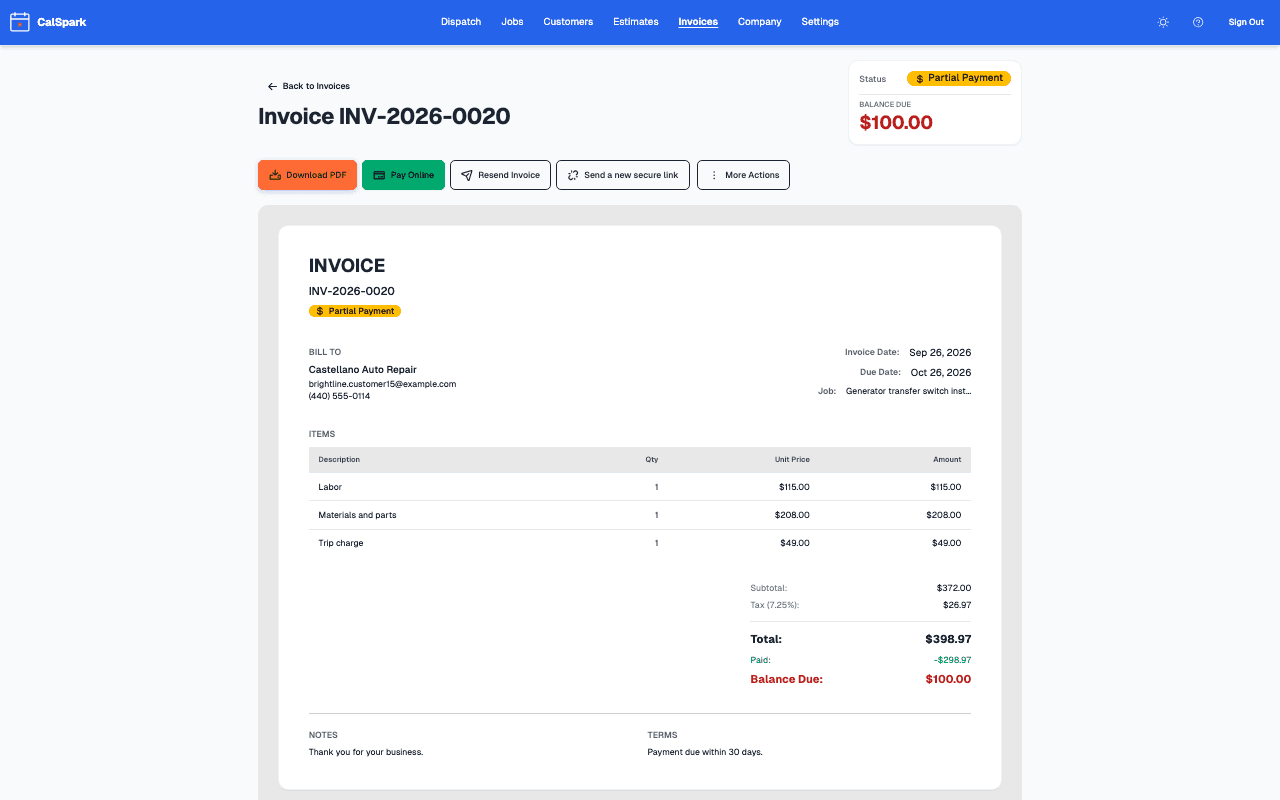
Each invoice is built from line items. Add labor, parts and fees as separate lines, and the totals are worked out for you. Numbering is per company, so your invoices count up from your own first one.
Every invoice can be downloaded as a PDF, and you can email it to the customer straight from CalSpark. The status always tells you where it stands.
Keep the lines plain. A customer reading an invoice should be able to match each line to the work they saw: the hours, the part, the trip fee. Clear lines mean fewer calls asking what a charge was for.
| Status | What it means |
|---|---|
| Draft | Built but not sent yet. |
| Sent | Emailed to the customer. |
| Viewed | The customer has opened it. |
| Paid | Paid in full. |
| Partial | Some money received. A balance is left. |
| Overdue | Past its due date and not paid. |
| Void | Cancelled. The customer no longer owes it. |
Getting paid by card
Connect your own Stripe account in settings, one time. After that, customers can pay an invoice online by card, and the money goes to your Stripe account. Payouts follow your Stripe settings, not ours.
Stripe charges its own processing fees. Those fees are Stripe's, they are set by Stripe, and CalSpark does not add to them. Check Stripe's current pricing before you decide how to price your work.
From draft to paid, step by step
- Create the invoice. Pick the customer, add the line items, check the total and save it. It starts as a draft. If the work began as an estimate, the draft is already built from it.
- Send it. CalSpark emails the invoice with the PDF and a secure pay link. The status becomes sent, and viewed once the customer opens it.
- The customer pays. They open the pay link and pay the balance by card. Paying it in full turns the status to paid.
- If part was already recorded, such as a cash deposit, the invoice shows partial and the pay link asks for the remaining balance only.
- If a payment is refunded, the refund is reflected on the invoice, so the numbers match what really happened.
Partial payments and refunds
Real jobs do not always settle in one payment. A customer might pay a deposit now and the balance later, or pay for the parts and wait on the labor. Your staff record each part payment against the invoice, and CalSpark keeps the balance in view, so you never have to work out what is left on a napkin.
Refunds work the same way in reverse. When money goes back to a customer, the invoice reflects it. Open the invoice weeks later and it still tells the true story: what was billed, what was paid, what was returned, and what is still owed.
- Partial: some money received, balance still due.
- Paid: the balance is zero.
- Void: use it for an invoice that was a mistake or a job that fell through.
After the job
Invoicing works best right after the work. When a job is marked completed, build the invoice the same day while the details are fresh. The faster the invoice goes out, the faster it tends to get paid.
You see which invoices are late. You can follow up yourself by phone or email, or switch on the overdue invoice reminder emails (1, 7 and 14 days after the due date) in settings. They are off until an admin turns them on. The guide to faster payment covers what to say. Not sure what to charge? Try the job pricing calculator.
Not there yet
- QuickBooks sync: not available. QuickBooks Online is planned, with no date. Use the invoice CSV export meanwhile.
- Recurring invoices: not built. Recurring jobs repeat visits, and you invoice each one.
- Online card payment collects the remaining balance. Record a deposit or cash payment on the invoice yourself.
Questions
Whose Stripe account receives the money?
Yours. You connect your own Stripe account once in settings, and card payments from customers go there. Payouts follow your Stripe settings. CalSpark does not hold your money on the way.
Who pays the card processing fees?
Stripe charges its own processing fees, and they are Stripe's to set. CalSpark does not add to them. Look at Stripe's current pricing so you know what a card payment costs your business.
Can a customer pay part of an invoice?
Yes. Record a deposit or a cash, check or bank payment on the invoice and it moves to partial with the balance due. The card page then collects what is left. When the rest arrives, the invoice becomes paid. Refunds are reflected on the invoice too, so the record stays accurate.
Does CalSpark send estimates?
Yes. Build an estimate with line items, email it as a PDF and let the customer approve or decline on a web page. After approval you can create a job and a draft invoice from it. See [estimates](/features/estimates).
Does it sync with QuickBooks?
Not today. A QuickBooks Online sync is planned and not available, with no date. Until then, an admin can download invoices as CSV from Settings, Data, or your bookkeeper can work from the invoice PDFs.
Keep reading
- Features: what CalSpark does todayDispatch board, estimates, recurring jobs, invoices with card payments, custom automations, Slack notifications and CSV export. What works now, what is planned and what is not built.
- Job scheduling and dispatch timelineA dispatch board with a row per technician, in day and week views. Click to create a job, drag to reschedule or reassign, and get a warning when two jobs overlap.
- How to get contractor invoices paid fasterInvoice the same day, record deposits and partial payments, offer card payment and chase late invoices without souring the customer.
- QuickBooks Online sync: plannedSend customers, invoices and payments to QuickBooks Online. Planned. Not available.
- Job pricing and markup calculator for contractorsEnter labour, materials, overhead and the margin you want. Get a price, the markup and the profit. Runs in your browser, no login.
Try it with your own jobs
14-day free trial. No card. $49 a month flat for up to 10 users after that.