Recurring jobs for maintenance and repeat visits
Turn any job into a repeating series: every N days, weeks or months. CalSpark creates the visits a few weeks ahead, and you can edit one visit, edit all future visits, skip a visit or end the series.
Make a job repeat
Open any job. On the job page there is a Repeats card. A one-off job says it happens once, with a button, Make this job repeat. Choose it and a dialog asks how the job should repeat.
- Open the job you want to repeat.
- On the Repeats card, choose Make this job repeat.
- Pick the cadence: every N days, every N weeks or every N months.
- Set the default technician, the duration in minutes, the start time and the date of the first visit.
- Choose when it ends: never, after a number of visits, or on a date. Confirm.
CalSpark then creates the visits automatically, a few weeks ahead of today. Each visit is a normal job. It shows on the dispatch board, can be moved and reassigned, can have photos, and can be invoiced like any other.
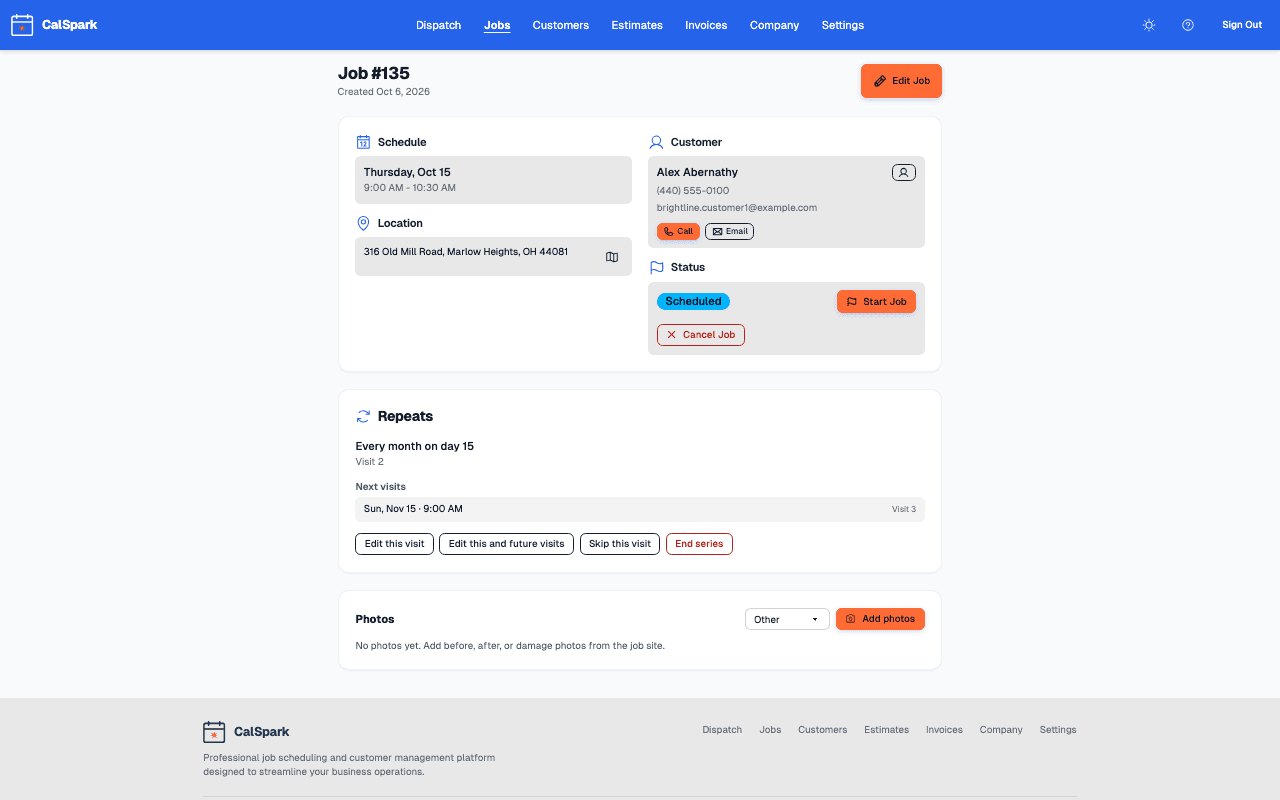
The cadence options
- Every N days. Every 14 days, for a rental turnover check, for example.
- Every N weeks, on the weekdays you choose. Leave the weekdays empty to use the weekday of the first visit.
- Every N months, on a day of the month or on the nth weekday, such as the first Tuesday or the last Friday. A repeat on the 31st lands on the last day of shorter months and does not drift.
Pick the cadence that matches the promise you made the customer, not the one that is easiest to set up. A customer who was told twice a year should get two visits a year, and a series makes that the default instead of something someone has to remember.
Six months gives you a spring and fall tune-up. Twelve months gives you an annual inspection. Every 3 months fits a quarterly filter change. For the HVAC and plumbing schedules in detail, see setting up maintenance-visit schedules.
Change one visit or all of them
Real schedules change. When you edit a visit in a series, CalSpark asks what you want to change.
| Action | What happens |
|---|---|
| Edit this visit only | Only that visit changes, for example a different technician or time. Later edits to the series do not touch it. |
| Edit this and future visits | This visit and every later one change together, for example a new default technician or a longer duration. |
| Skip this visit | The visit is skipped and the schedule carries on. Use it when a customer is away. |
| End series | Stops the series. You choose to keep or remove the future visits that were already created. |
A visit you edited on its own stays as you set it. That is the safe default: a one-off change should not get overwritten by a later edit to the whole series.
Limits worth knowing
- Visits are created a few weeks ahead, not years ahead. The board does not fill with next year's visits.
- Each visit is its own job. Invoicing is per visit, so a yearly agreement fee is an invoice you create yourself.
- A series has one default technician. Reassign a single visit when someone else covers it.
Pair recurring jobs with an email reminder. A series sends one booking confirmation for the whole series, not one per visit, and the appointment reminder automation sends a reminder before each visit once an admin switches it on. See appointment reminder emails.
What recurring jobs do not do
- No separate service-plan or membership billing. Each visit is a job, and you invoice it.
- No equipment records. Put model and serial numbers in the notes or attach a data plate photo.
- No route optimization. You order the day on the board.
Questions
How far ahead does CalSpark create visits?
A few weeks ahead. The series keeps creating visits as time passes, so the board shows the near future and not every visit for the next year.
Can I change the technician for one visit?
Yes. Edit that visit and choose this visit only. The rest of the series keeps its default technician.
What if a customer cancels one visit?
Skip it. The series continues with the next visit.
Can I stop a series?
Yes. End the series, and choose whether to keep or remove the future visits already created.
Do recurring jobs invoice automatically?
No. Each visit is a normal job, so you invoice it as usual. A draft-invoice-on-completion automation exists as a template. It only drafts, and never sends.
Keep reading
- Job scheduling and dispatch timelineA dispatch board with a row per technician, in day and week views. Click to create a job, drag to reschedule or reassign, and get a warning when two jobs overlap.
- Maintenance Visit Schedules for HVAC and Plumbing ShopsSet up tune-ups, flushes and backflow tests as recurring jobs: pick cadences, handle skipped visits and technician changes, add reminders and bill each visit.
- Scheduling and invoicing software for HVAC companiesSeasonal peaks, install crews and service techs on one dispatch board, with multiple addresses per customer. $49 a month flat.
- Scheduling and invoicing software for plumbersEmergency call-outs, warranty callbacks and parts runs on one dispatch board you can drag. $49 a month flat for up to 10 users, no per-tech fees.
- Pricing: $49 a month flat for up to 10 usersOne plan. $49 a month for up to 10 users, no per-user fees. 14-day free trial with no card. See how it compares to per-user pricing.
Try it with your own jobs
14-day free trial. No card. $49 a month flat for up to 10 users after that.